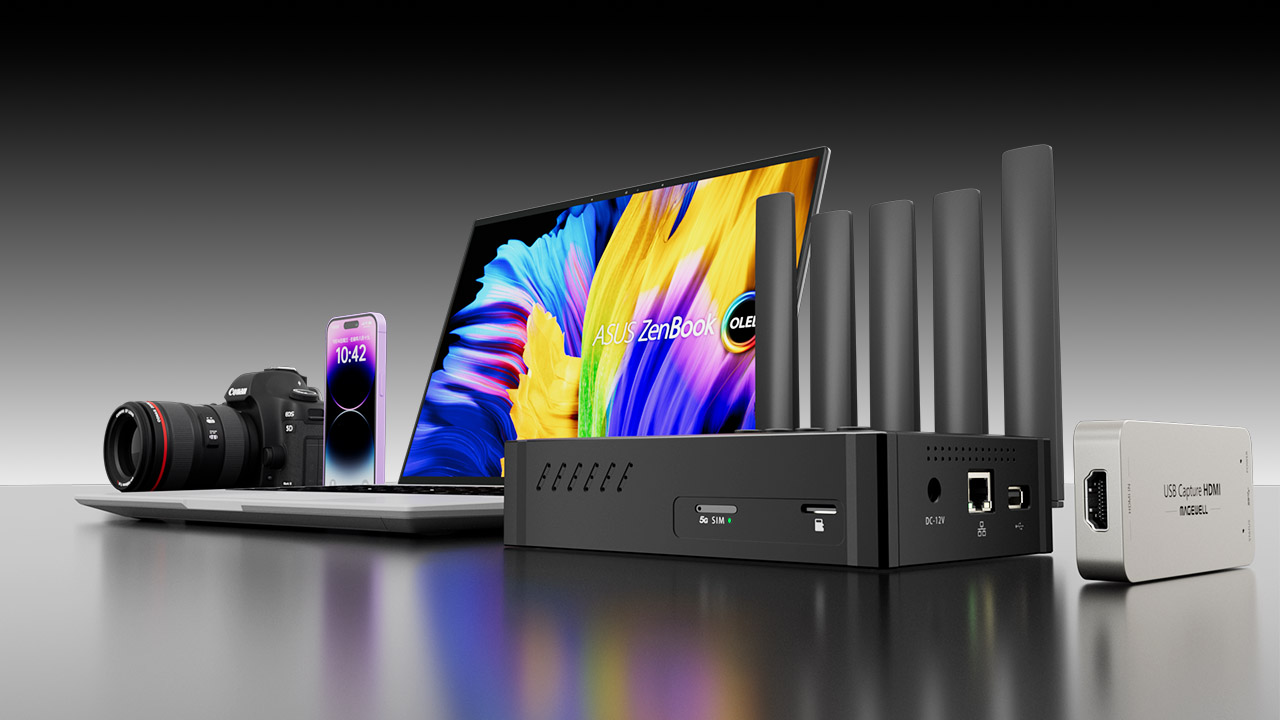
With the booming live‑streaming industry, more and more creators are looking to point their lenses toward the great outdoors and city streets. However, traditional outdoor streaming often comes with cumbersome equipment and high costs. Today, we will reveal a lightweight, budget‑friendly OBS outdoor streaming setup. With just a laptop, a smartphone, a live‑streaming encoder, a video capture card, and a camera, you can easily capture high‑definition video signals and stream to major platforms to kickstart your outdoor broadcasting journey.
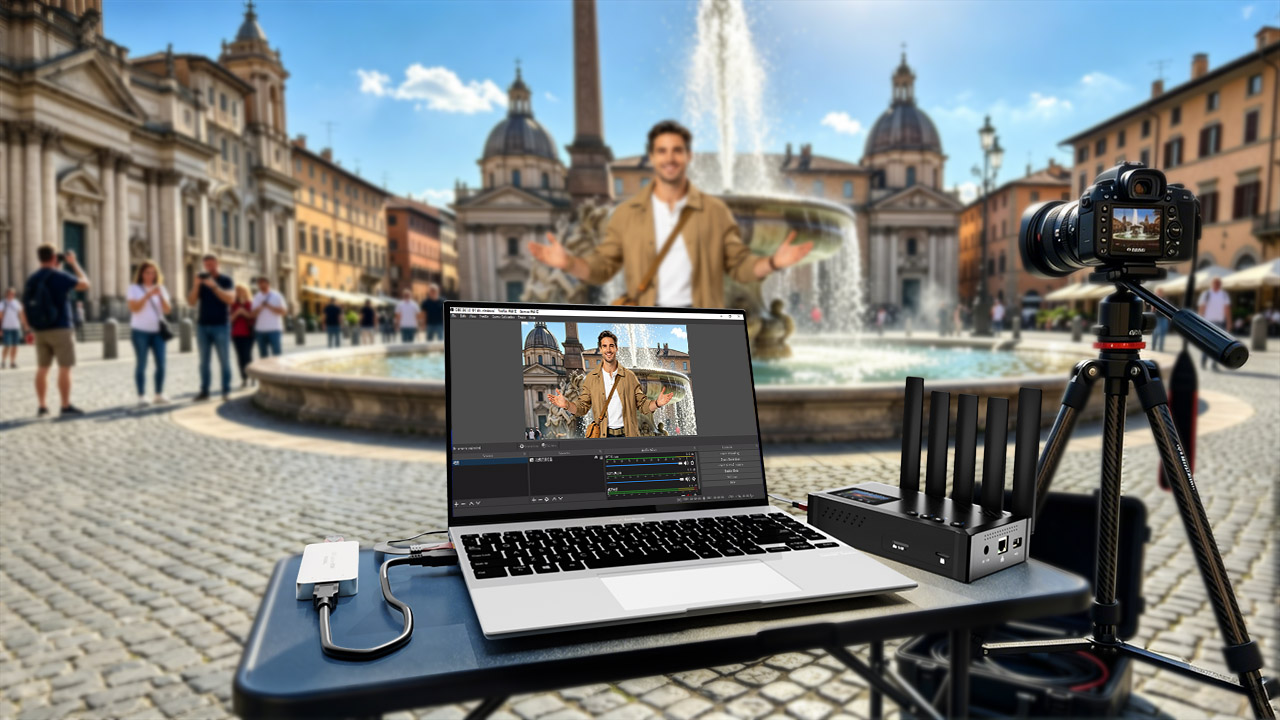
Core Equipment Connections and Signal Transmission Guide
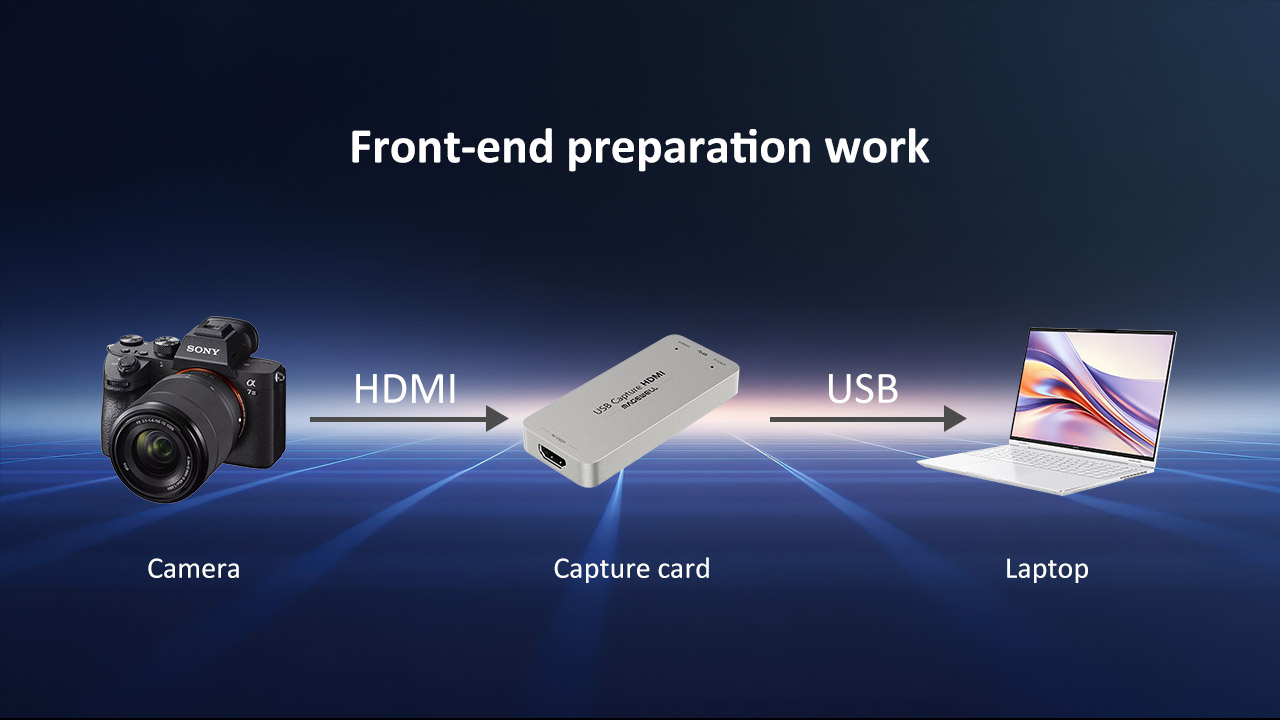
The core of this outdoor streaming setup lies in building a stable and highly efficient signal transmission chain. First, connect your camera's HDMI output port to the input end of the video capture card using a high‑definition cable. Then, connect the capture card to your laptop via a USB 3.0 cable. This step is crucial as it converts the uncompressed video signal output by the camera into a digital signal recognized by the computer.
For audio and network reliability, it is recommended to use an external wireless lavalier microphone to ensure clear audio pickup in noisy outdoor environments. Since wired broadband is unavailable outdoors, you can set your smartphone as a hotspot to provide a stable 4G/5G network for your laptop. If you pursue ultimate network stability, consider using a professional live‑streaming bonding encoder. It can aggregate multiple SIM card networks to provide robust upstream bandwidth for your OBS stream.
OBS Software Configuration and Streaming Settings
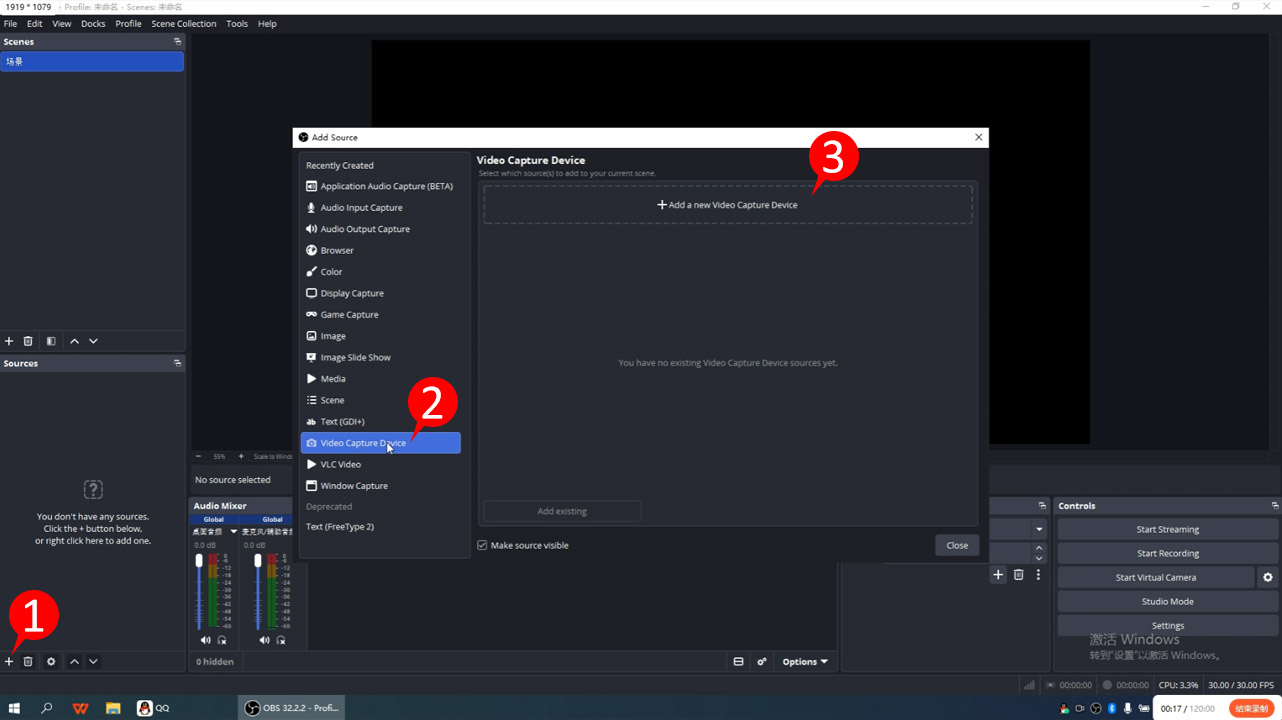
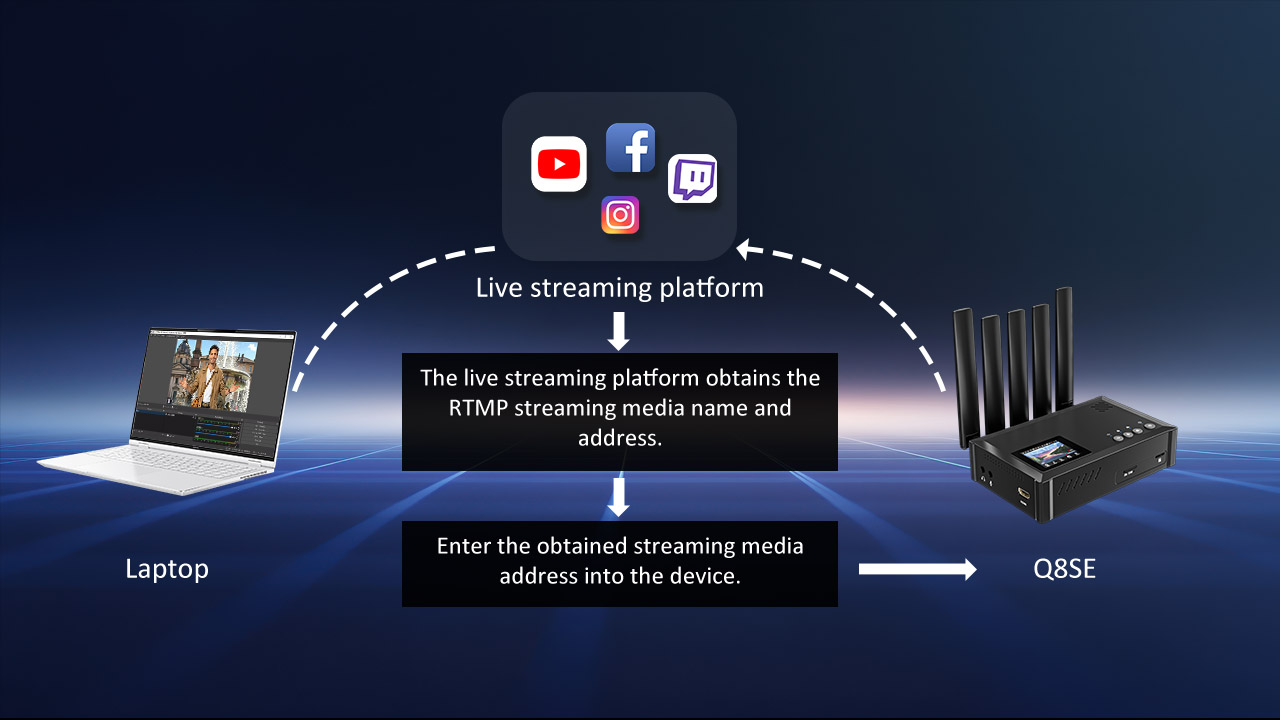
Once the hardware is connected, it’s time to configure OBS Studio. Open OBS and add a "Video Capture Device" in the Sources panel, selecting your connected capture card as the primary video source. Next, go to the "Stream" section in the Settings menu, select "Custom Streaming Server," and accurately paste the RTMP URL and Stream Key obtained from your target platform’s creator backend (e.g., Twitch, YouTube, Facebook Live).
To maintain a smooth stream even when outdoor networks fluctuate, it is advisable to set your video bitrate between 2000‑4000 kbps, resolution to 1080p, and frame rate to 30fps in the OBS "Output" settings. For mobile outdoor scenarios, you can enable dynamic bitrate adjustment. When the network drops from 5G to 4G, the system will automatically lower the bitrate to prevent buffering or stream drops. Before going live, always conduct a 5‑10 minute test stream to check video latency, audio‑video sync, and network packet loss to ensure everything runs flawlessly.
Ultimate Guide to OBS Outdoor Streaming with the Q8SE Encoder
Next, extract the streaming media addresses (RTMP URL and Stream Key) from your target platforms and configure them directly in the Q8SE live-streaming encoder. A standout feature of the Q8SE is its built-in SIM card slot with multi-network bonding technology. This allows the encoder to establish its own independent 4G/5G network connection without relying on a laptop or external hotspot. In mobile outdoor environments, this ensures a highly stable upstream bandwidth, allowing you to transmit high-definition live content to your platform in real time. With just a few simple steps, you can achieve a seamless and professional outdoor broadcast.
Streamline Configuration with the Mlive App
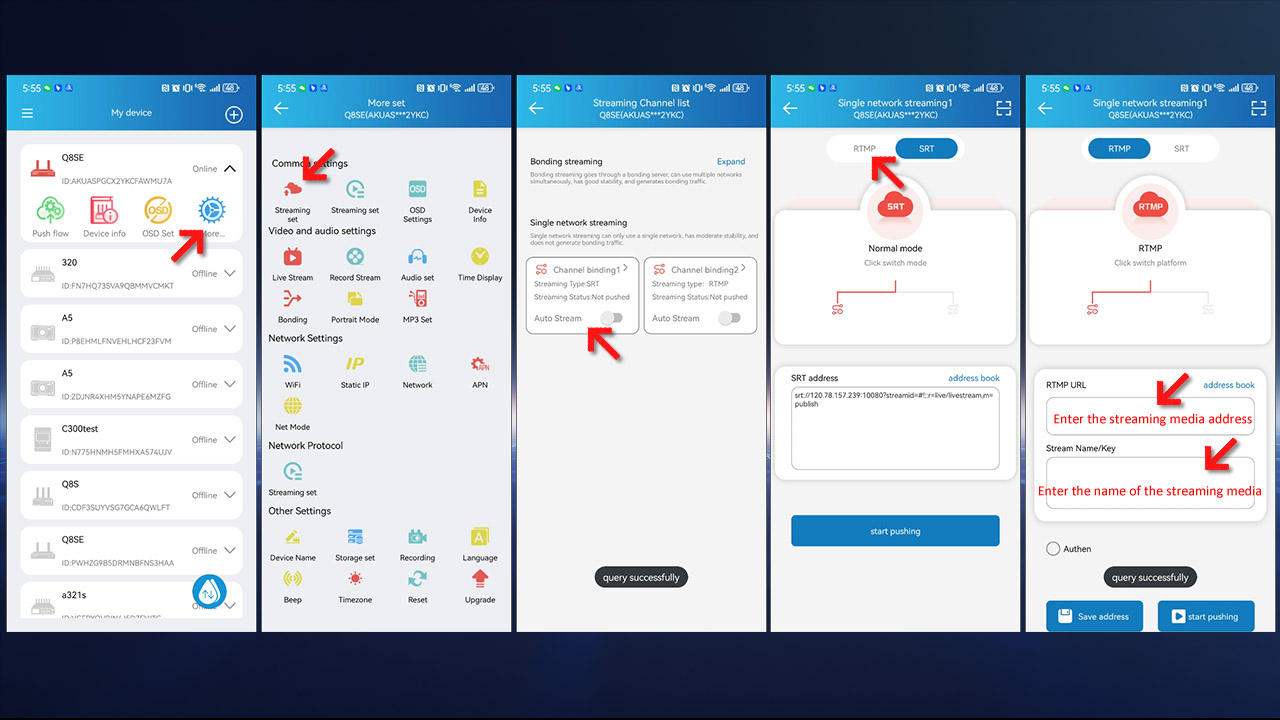
...With just a few simple steps, you can achieve a seamless and professional outdoor broadcast. To further streamline this process, the Q8SE can be paired with the Mlive mobile app. This intuitive app allows you to scan QR codes or easily fill in the streaming addresses directly from your smartphone, making on-the-go configuration much faster and more convenient than typing on a laptop.
Typical Use Cases and Practical Tips
This lightweight OBS outdoor streaming solution offers high flexibility and is suitable for various practical scenarios. For outdoor hiking, cycling, or landscape showcase streams, you can mount the camera on a helmet, backpack, or tripod. Utilizing OBS’s powerful processing capabilities, you can overlay real‑time weather info, route maps, or dynamic text to greatly enhance viewer immersion.
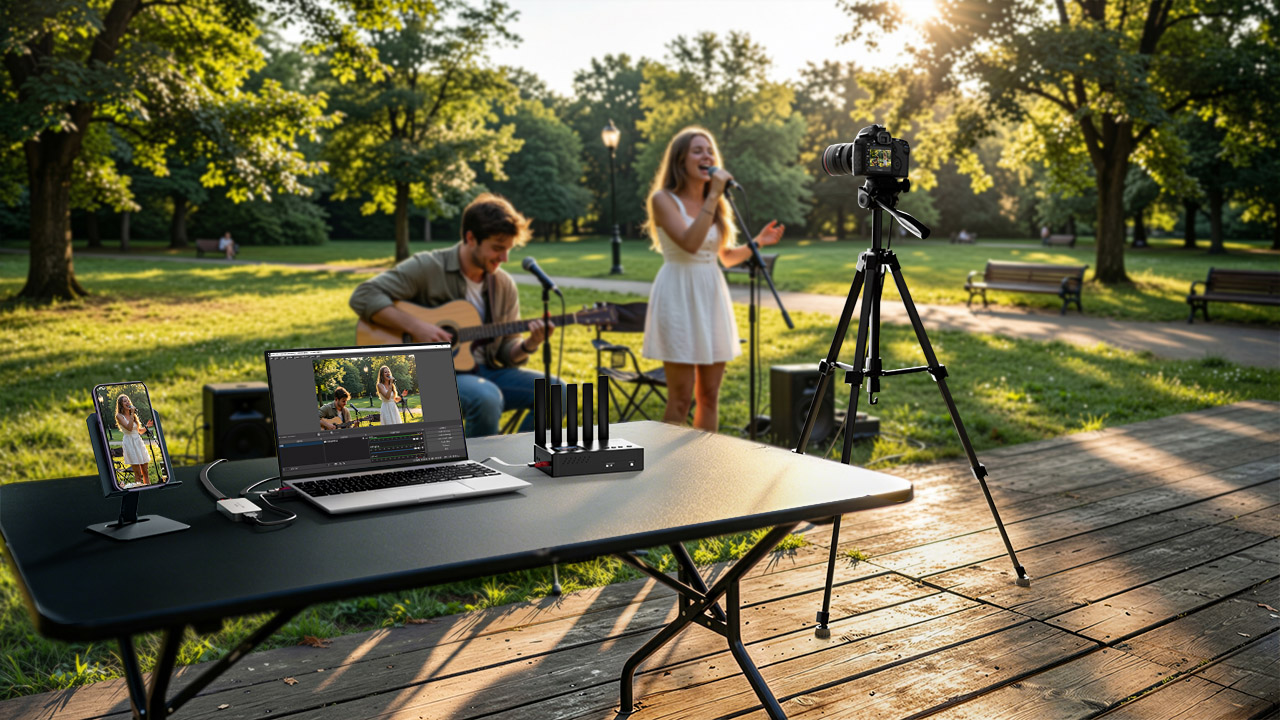
This setup is equally capable for outdoor teaching, street interviews, or commercial event announcements. You can use OBS’s "Picture‑in‑Picture" feature to display the speaker’s feed while simultaneously showing PPT slides or close‑up shots. If sudden bad weather strikes or you need a quick break, OBS allows you to instantly switch to a pre‑set "Be Right Back" image or video loop. This avoids awkward black screens and buys time for equipment cooling and battery recovery. With proper power planning (such as using dummy batteries or high‑capacity power banks), this budget‑friendly setup is more than enough to deliver a professional‑grade outdoor live stream.