MINEMedia Voice Call System Overview
The MINEMedia Voice Call System supports real‑time voice intercom for multiple C300 and C350 live streaming backpack devices. Device administrators can flexibly create project teams through the MINEMedia APP or web platform, quickly add required devices to team projects, and enable convenient group voice calls for live events and on‑site shooting scenarios.
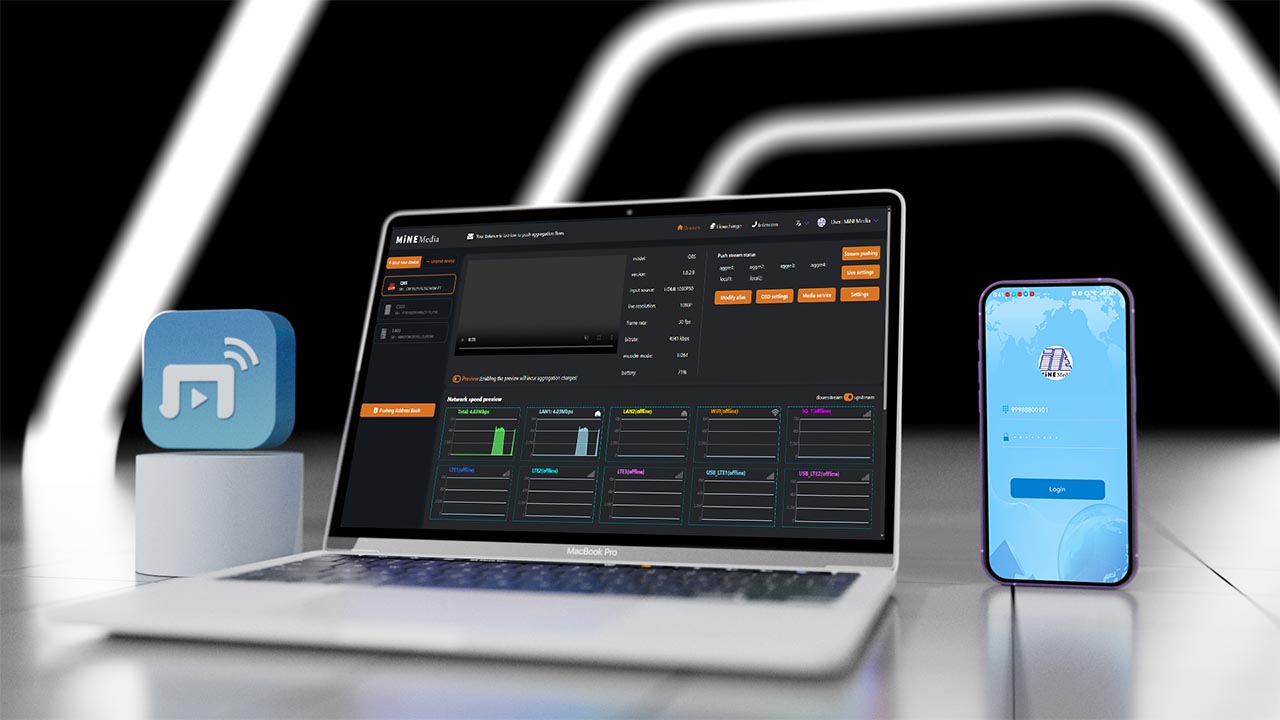
MINEMedia APP Operation Instructions
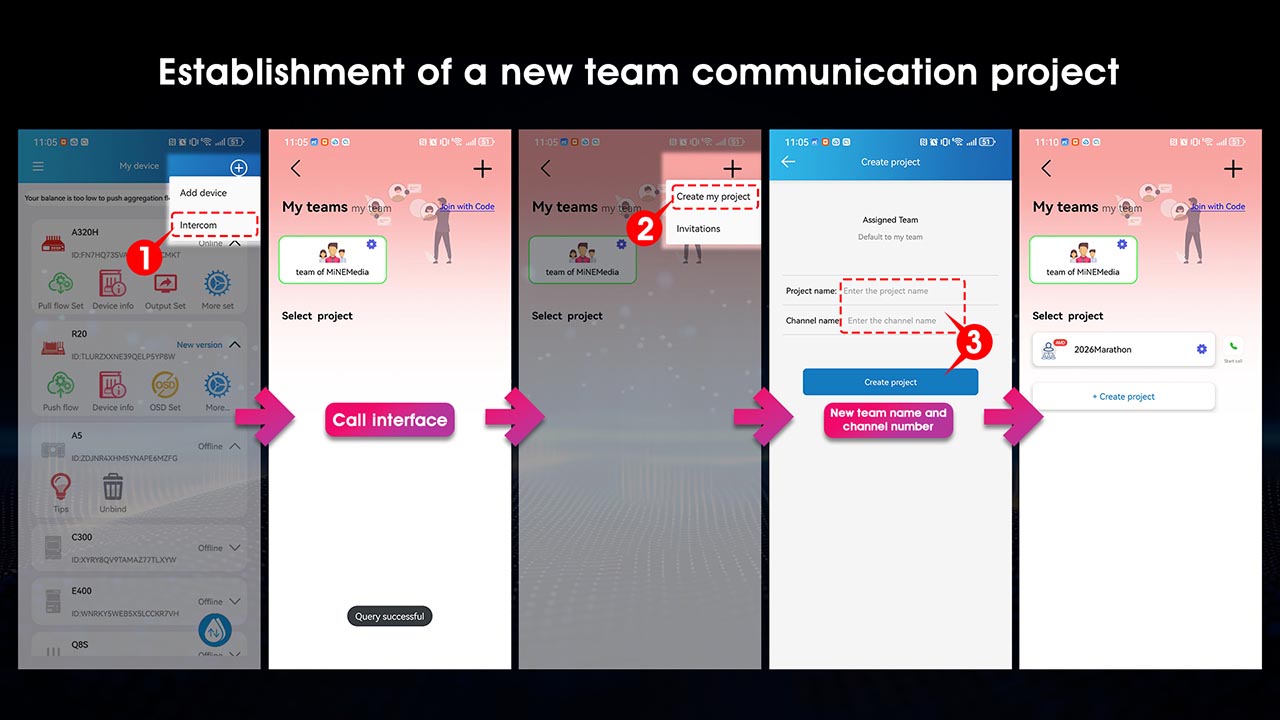
1. Add Call Devices
Log in to the MINEMedia APP > Enter the voice call interface > Create a team > Tap "Start Call" > Confirm that devices are bound and online > Tap the "Add" icon > Select target call devices > Tap device avatars to go online.
2. Add Team Members / External Collaborators
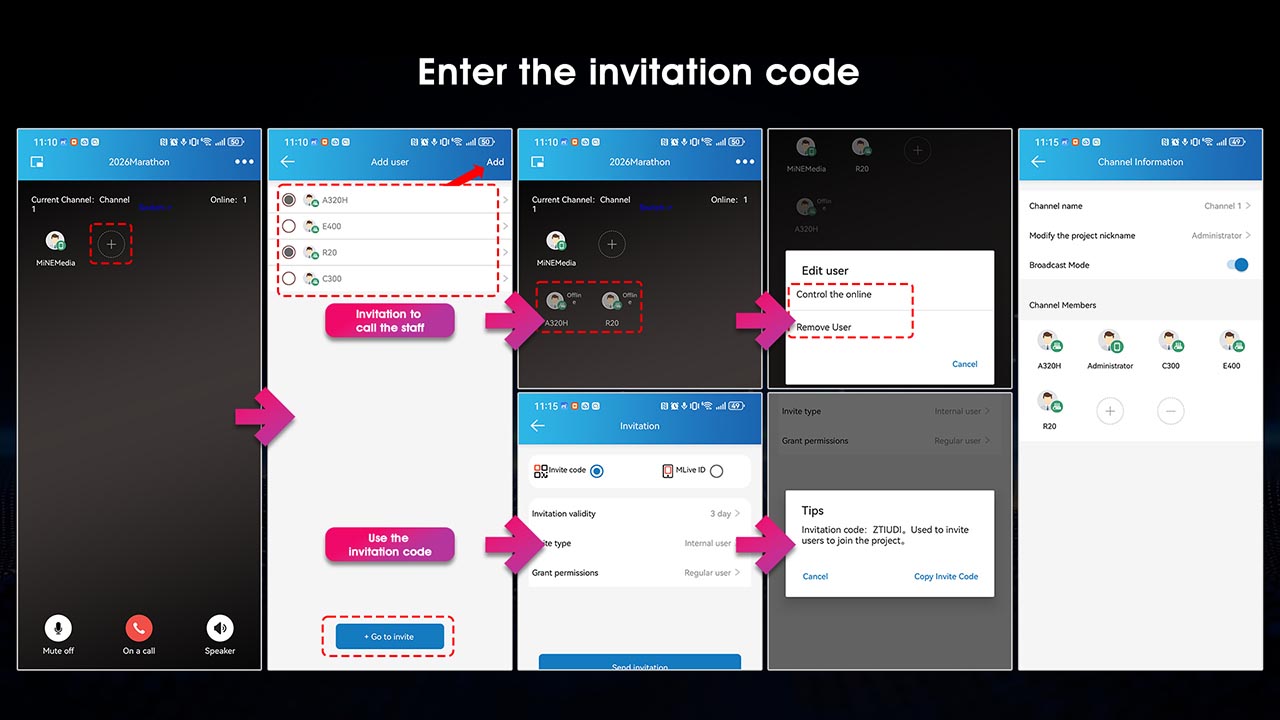
For administrators: On the call interface, tap the "Add" icon > Tap "Invite Others" > Send project invitations via invitation code or mobile phone number.
3. Channel Grouping
On the main interface of the MINEMedia voice call system > Enter "Settings" > Tap "Create Channel" > Assign members to different independent channels. Voices in separate channels will not interfere with each other.
4. Broadcast Mode / Global Mute
Broadcast Mode: On the call interface, tap the upper‑right icon to enable broadcast mode, allowing all grouped members to communicate simultaneously.
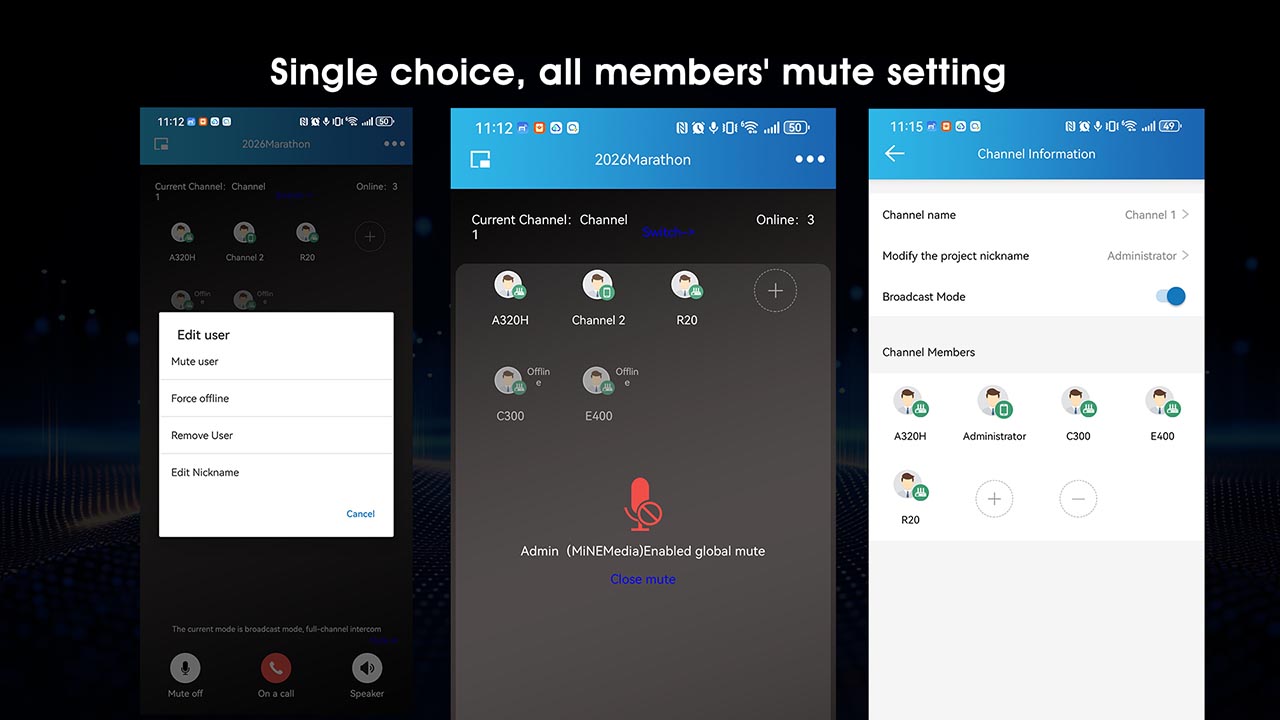
Global Mute: Enable "Global Mute" on the call interface. All members will be muted except administrators. Independent single‑user mute is available by tapping individual avatars.
MINEMedia Web Operation Instructions (mlive.minemedia.tv)
1. Add Call Devices
Log in to your MINEMedia account > Access the team management page > Create a new project > Tap "Start Call" > Open project settings > Confirm that target devices are bound and online > Tap "Add Participants" > Select devices for voice calls > Activate devices online.
2. Add Team Members / External Collaborators
Enter the project settings page > Tap "Add Participants" > Invite external users to join the project > Set user roles as internal staff or external collaborators.
3. Channel Grouping
On the project settings page > Create custom independent channels > Assign members to corresponding channels. Each channel supports exclusive voice communication without cross‑interference.
.jpg)
.jpg)
.jpg)
4. Broadcast Mode / Global Mute
Broadcast Mode: Enable "Project Broadcast" in project settings to support synchronous group calls for all team members.
Global Mute: Turn on "Global Mute" in project settings. All users except administrators will be muted. You can mute individual members separately by clicking their avatars.
Product Core Features
The MINEMedia Voice Call System is tailored for live production, on‑site shooting and field event collaboration. It supports flexible team creation, independent channel division, one‑click broadcast activation and global mute control, enabling live teams to conduct stable, efficient and orderly real‑time voice collaboration.